📊 Exporting Southern Software Report
Follow these steps to generate and export the Budget vs Actual report from the General Ledger:
🔹 Step 1: Navigate to the Report
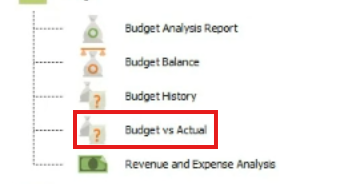
- Go to the General Ledger report screen.
- Open the Budget folder.
- Click on Budget vs Actual.
🔹 Step 2: Configure the Report Filters
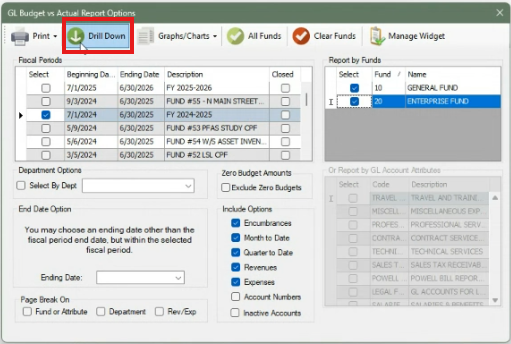
- ✅ Check the Fiscal Periods you want to include.
- Under Report by Funds, check:
GENERAL FUNDENTERPRISE FUND
- Click on the Drill Down option.
🔹 Step 3: Select Report Columns
On the next screen, grab this options to the report:
- Fund or Attrib
- Type
- Dept Desc
- Go to Print and click Print Grid Report.

🔹 Step 4: Print Setup
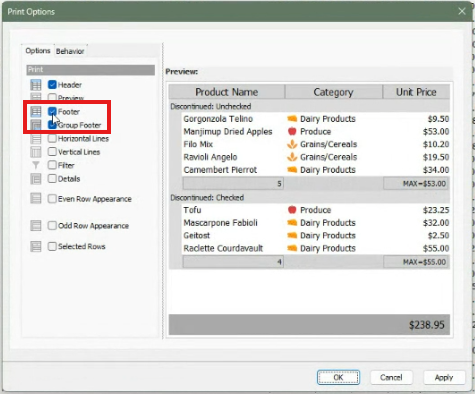
- Go to Print Options.
- In the new window:
- ❌ Uncheck Footer
- ❌ Uncheck Group Footer
- Click OK
🔹 Step 5: Clean Up Headers and Footers
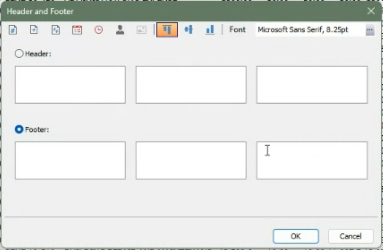
- Go to Header and Footer.
- Delete all content in the textboxes.
- Click OK.
🔹 Step 6: Export the Report
- Click the Save button.
- Choose the Excel File option.
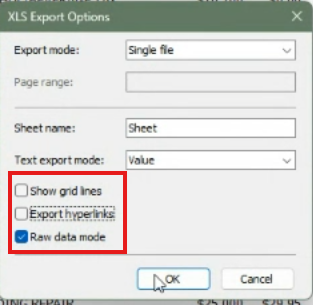
- In the options dialog:
- ✅ Check Raw data mode
- Click OK
- Enter a file name, choose a destination folder, and click Save.
✅ You're done! Your report is now saved as a raw Excel file.